Race Card Filter

Tag: Race Card Filters

  • Race Card Filter

    Race Card Filter

    Every race card has a Race Card Filter popup. This features gives you the ability to customise each race using the changeable options; Rated Quantity, Visible Races, Race Distance, Race Types, Surface Types and Going Types.

    Ignore Horse feature

    A great way to clean up messy races.

    You can remove any runner from any race for any reason and re-rate.

    On the right-hand side of the racecard, you will see two pink columns with options **** buttons.

    The column below the racecard filter/options button contains the remove horse function.

    The **** button enables the remove all function so you can remove more than one horse from the race at the same time. Below this button the boxes allow you to tick as many horses as you want.

    How to open Race Card Filters

    On the top right hand side of the race cards (see Fig. 1) you will see the “Race Card Filter Options” button. If you click the button you will see a popup with all the filter options so you can customise the ratings for each interactive race card (see Fig. 2).
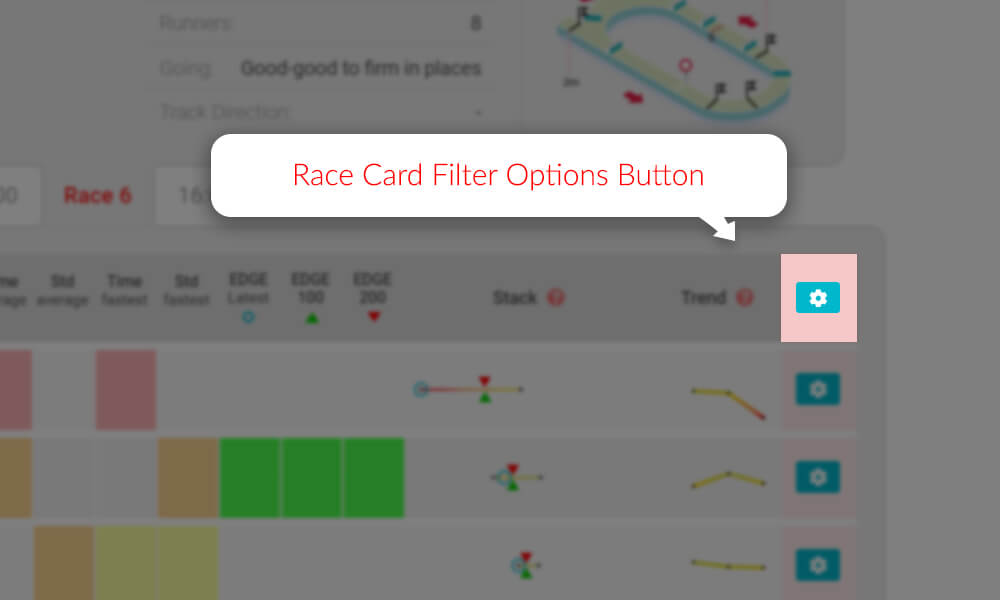
    Sample Race Card Filter Options Button - TrackMate
    Fig. 1 – Race Card Filter Option Button
    Sample Race Card Filter Options 1 - TrackMate
    Fig. 2 – Race Card Filter Options Menu

    Quantity of Rated Races

    TrackMate’s default quantity of rated races is set to All qualifying runs. This means after the algorithm filters out all non-qualifying runs it will use all the remaining races.

    This option allows you to re-rate the race using either the last 3, 5, 8 or All qualifying runs. Remember the rating is the average of all runs in the rating time period. By changing the quantity of runs included in the ratings could drastically change the race card picture.

    If you set this option to 8 then a maximum of 8 previous runs will be included in the ratings… and so on.

    If the horse has less than the maximum quantity of rated runs it will be rated only on the qualifying runs for this period. So if the option is set at 8 runs but the horse has only had 3 runs, the system can only rate those 3 runs. On the other hand… if the horse has had 10 runs then only the last 8 runs will be included.

    Quantity of Visible Races

    This sets the maximum quantity of visible races to show in the form, stack and trend for this race card. The default setting for this feature is 8, but you can choose between 3, 5, 8 or All.

    Race Distance Tolerance

    This feature allows a tolerance range in yards for race distances to be included in the ratings algorithms.

    • This option is set to OFF as default.
    • If you turn it ON then a the race distance tolerance is set to 100 yards as default.

    When OFF this allows all qualifying race distances to be included in the algorithms. When ON and you don’t change the default distance from 100 then all races within 100 yards shorter or 100 yards longer than the race card distance you are filtering will be included… and so on.

    Race Type Indicators
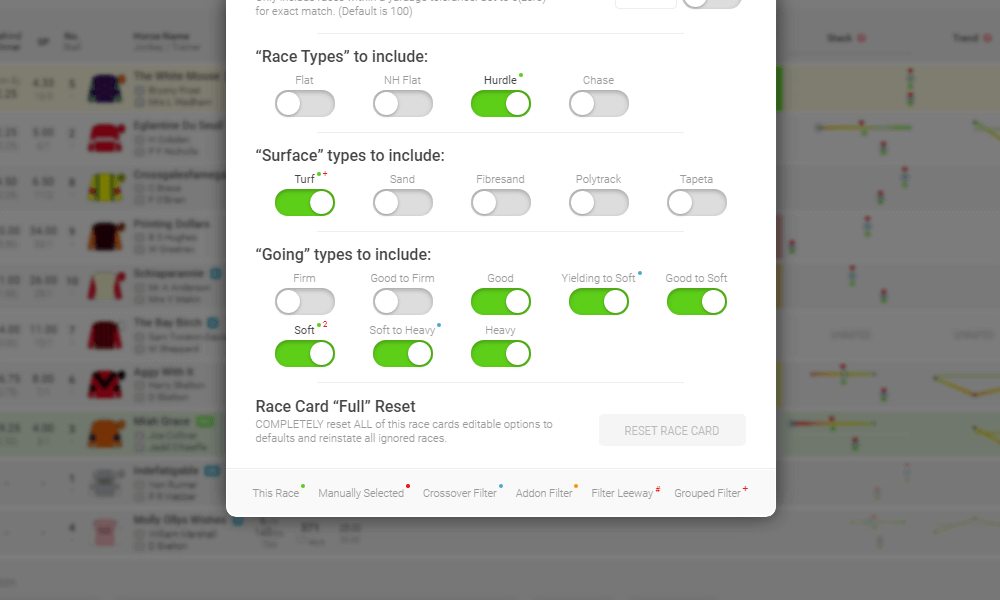
    Sample Race Card Filter Legend - TrackMate
    Sample Race Card Filter Legend

    At the bottom of the Race Card Filters popup you’ll see the filters legend which explains all the different indicator types. There are 6 filter indicators to understand, but they are very useful once you get used to them.

    This Race

    “This Race” is a green dot to indicate which is the current race card’s type.

    Manually Selected

    “Manually Selected” is a red dot to indicate which options that you have selected yourself.

    Crossover Filter

    “Crossover Filter” is a blue dot which indicates that equivalent types have been automatically selected by the system. An example of this (see picture above) would be when the current race card “This Race” going is an English going term, in this case Soft, so the equivalent Irish going types are added; Soft to Heavy and Yielding to Soft.

    Addon Filter

    “Addon Filter” is an orange dot which indicates that additional types have been automatically selected by the system. An example of this would be when the current race card is an English track so Irish equivalent going types are added and vice-versa.

    Filter Leeway

    “Filter Leeway” is a red number to indicate the leeway quantity either side of “This Race” type. This customisable user setting can be altered on the myAccount page.

    Grouped Filter

    “Grouped Filter” is a red plus (+) symbol which indicates that a customisable user setting is active.. This customisable user setting can be altered on the myAccount page.

    Race Types

    TrackMate will automatically identify the current race card “Race Type” and as default will only include races of the same type in the ratings algorithms.

    You can include other race types from a selection of “Flat”, “NH Flat”, “Hurdle” and “Chase”, but be careful as you could be adding race types that aren’t relevant and re-rate the race card with inaccurate ratings.

    Surface Types

    TrackMate automatically selects the current race card “Surface Type” and as default will only include races of the same type in the ratings algorithms.

    There is a customisable user setting available for this option. If the current race is all weather then you can decide whether to include all other all weather types or not. When ON you’ll see a red + next to the “This Race” type so

    You can include other race types from a selection of “Turf”, “Sand”, “Fibresand”, “Polytrack”, “Tapeta” and “Dirt”, but be careful as you could be adding race surfaces that aren’t relevant and re-rate the race card with inaccurate ratings.

    Going Types

    TrackMate automatically selects the current race card “Going Type” and as default will only include races of the same type in the ratings algorithms.

    You can include other race types from a selection of “Turf”, “Sand”, “Fibresand”, “Polytrack”, “Tapeta” and “Dirt”, but be careful as you could be adding race surfaces that aren’t relevant and re-rate the race card with inaccurate ratings.

    Reset Race Card Filters

    The “Reset” button at the bottom of the filter options popup box enables you to completely reset the racecard to the original settings and start again. This will light up red when you have made changes to the original race card.

    The adjustments made will stay in play until cancelled and if you re visit this race in your historic racecard library it will stay in the mode you were last using the card in.

  • The Ratings Explained

    The Ratings Explained

    This page gives you an overview of the TrackMate ratings, what they mean and how to understand them. The ratings are colour coded for ease of use, eliminating the need for confusing tables of numbers and unnecessary racing jargon.

    Assuming you have already familiarised yourself with the race card, it is time to have a look at the ratings. If you need to know more about the race cards then have a look at the ADD LINK TO RACE CARD INFO PAGE page.

    This is a list of what this page includes:

    Rating Colours Explained

    We need to start with explaining what the rating colours mean before trying to explain anything else. TrackMate race cards display the top 3 rated and bottom rated horses in a traffic light style colour scheme as shown below.

    Clear Top
    Top Rated
    2nd Rated
    3rd Rated
    4th Rated
    Rated Last
    No Colour
    Non-Runner
    Not Rated

    Bright green is “Clear Top” meaning they are rated comfortably ahead of 2nd best. Green is “Top Rated” but not by a comfortable margin like clear top would be. “2nd”, “3rd” and “Last” rated continue in a familiar traffic light colour scheme.

    Horses rated “in the middle” are grey or have no colour as are horses without a rating. We only rate the top 3 and bottom as we do not need to know which horse is rated 7th and would void the point of our rating colours. If you hover over the rating boxes you will see the numerical rating. This will not be visible if the horse has no relevant rated form for the qualifying period.

    Now you understand what the different colours represent… let’s move on to the ratings themselves.

    The Ratings

    There are two ratings systems; the TrackMate Speed Ratings and the TrackMate unique EDGE Ratings. Each column for both sets of ratings are colour-coded to help simplify reading the race cards.

    Speed Ratings

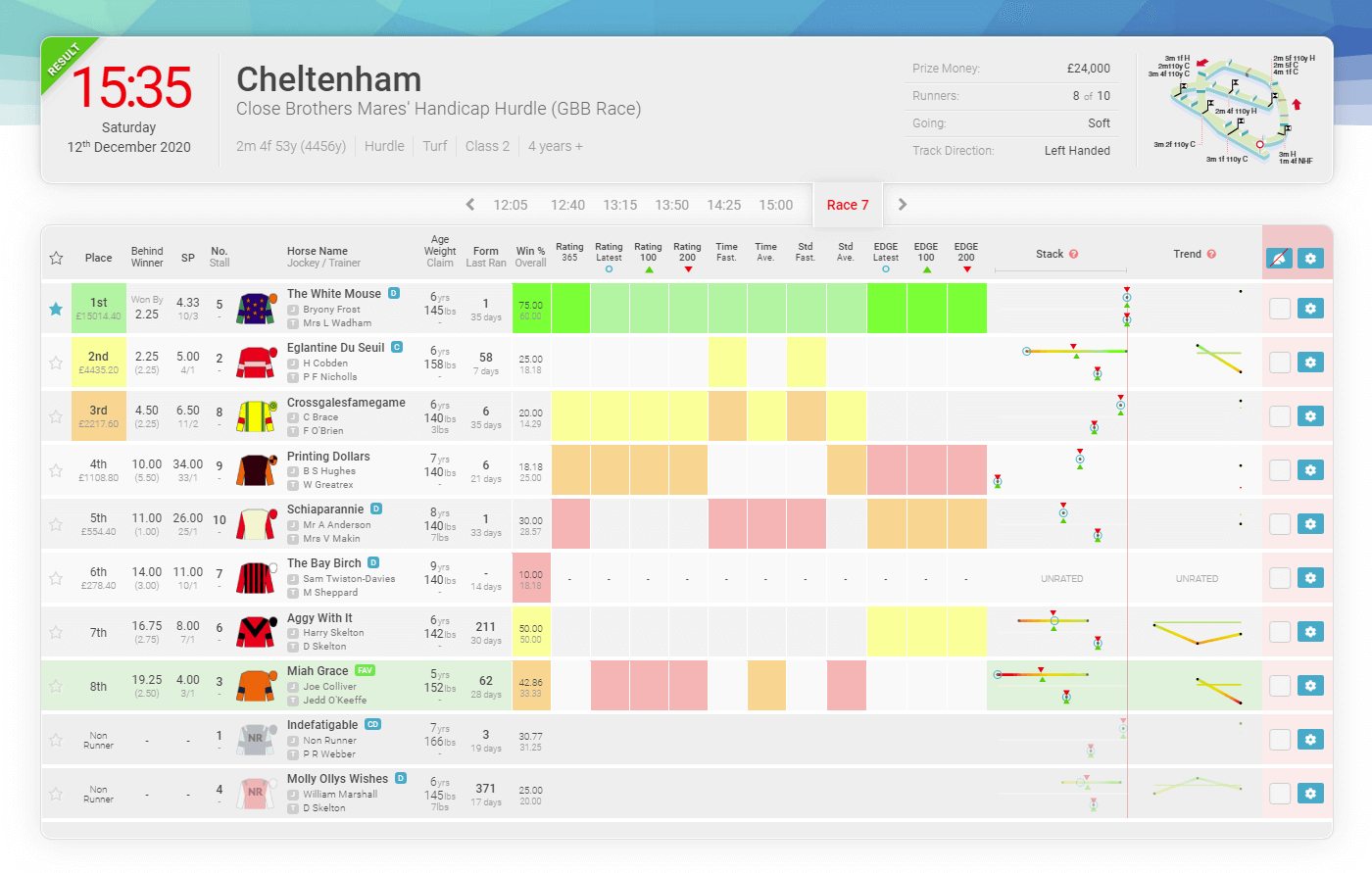
    The first 10 ratings boxes are the TrackMate Speed Ratings calculated using our advanced algorithms and unique racecourse standards. Ideally, you are always looking for these boxes to be as well coloured as possible. Remember… green is best.

    The TrackMate race cards display all the rated relevant runs (up to the last 8 runs) in a 200 day period We produce a speed rating for every run and the final speed rating is the average of all ratings combined.

    Win Percentage

    There are two percentages in this column. The top percentage is the win rate from for this exact type of race and the bottom is the overall win rate from all qualifying races.

    Rating 365

    This TrackMate average Speed rating is for the previous 365 days before the current race card you are viewing. We concentrate mostly on recent form so this rating indicates potential dangers from runners who have little or no form in the current season.

    Rating Prev

    TrackMate average Speed rating for the current time period in the previous season. This rating is most helpful for runners who have little or no form for the current seasons latest, 100 or 200 periods, like with Rating 365 but over a shorter period.

    Rating Latest

    The latest speed rating achieved by this horse. Very often an important indicator of the horses current form. A good speed rating for its latest run means that the horse should be fit and well and that the conditions of that last run suited the horse. This rating is also indicated on the stack as the blue circle.

    Rating 100

    This is the TrackMate Speed rating for this horse averaged over the last 100 days. The best indication of recent form. The more runs the more accurate this rating will be.

    Rating 200

    A slightly longer-term speed rating. This Rating is the overall Speed rating for the last 200 days. A good indicator of the horses’ consistency.

    Fastest Time

    The best time rating achieved in the last 200 days.

    Time Average

    This rating is achieved using our standardised race distance and represents the horses’ average time over said distance.

    Standard Average

    The runners average time from the TrackMate standard vs field.

    Fastest Standard

    This is the closest this runner has come to the TrackMate course standard time for this distance.

    Cheltenham - 2020-12-12 - 15-35
    Sample Race Card – Cheltenham, 12th December 2020 at 3:35pm

    It is not always the fastest horse that wins a race nor does it have to be. Some horses win races easily so do not run as fast as they could at the end of the race simply because they don’t have to. Well beaten horses will often leisurely cross the line in 10th place without a care in the world.

    Only good horses can run good times, but both good and bad horses can run bad times.

    The TrackMate Team

    In the scenarios above, no speed rating system can accurately rate this type of run.

    TrackMate speed ratings are no different and it would be ridiculous for us to claim otherwise. What we do claim however is that we believe that they are about as good as it gets.

    EDGE Ratings

    The last 3 boxes are the TrackMate Edge Ratings calculated using TrackMate’s unique algorithms.

    The TrackMate Edge Rating is the result of many years of development. The unique evolutionary algorithms run simulations with thousands, if not millions of iterations per race. Making EDGE a very powerful tool.

    The EDGE ratings are completely different from the speed based ratings and sometimes they will have conflicting assessments of a race. Being a form-based rating, the edge will sometimes find form lines that are better than the rest of the field but the speed ratings do not agree.

    EDGE Latest

    The most recent edge rating achieved.

    EDGE 100

    The Edge rating for the last 100 days.

    EDGE 200

    The edge rating over the last 200 days

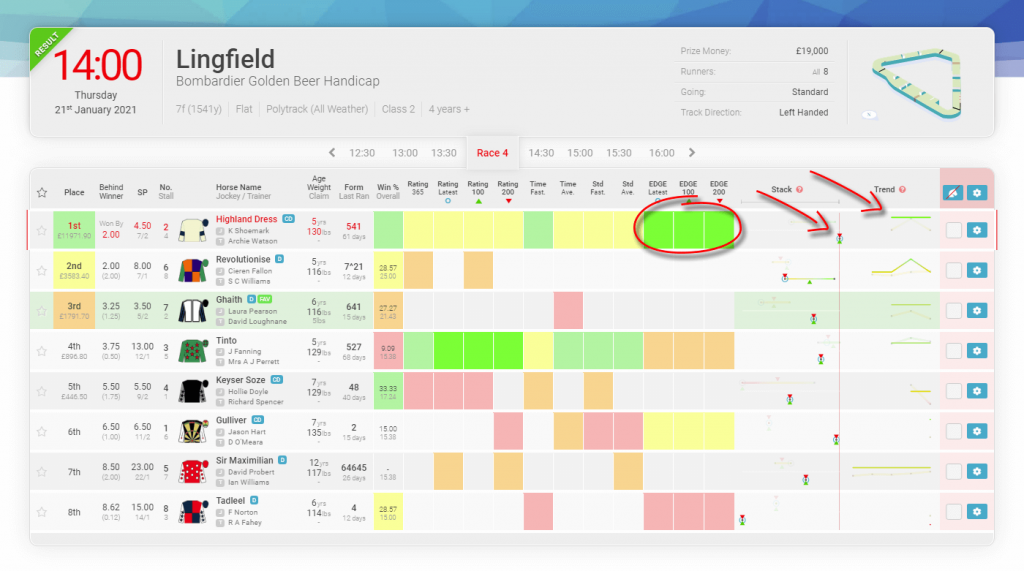
    Sample EDGE Rating - Clear Top - Lingfield - 2021-01-21 - 14-00
    Sample Race Card – EDGE Rating Clear Top

    The race card shows that the EDGE ratings have the winner “Highland Dress” as the clear top rated horse in the race. Ideally, we would look for some backup from good speed ratings but it is not always the case.

    Using the Stack and Trend are a couple of ways to back up the ratings.

    Interactive Ratings

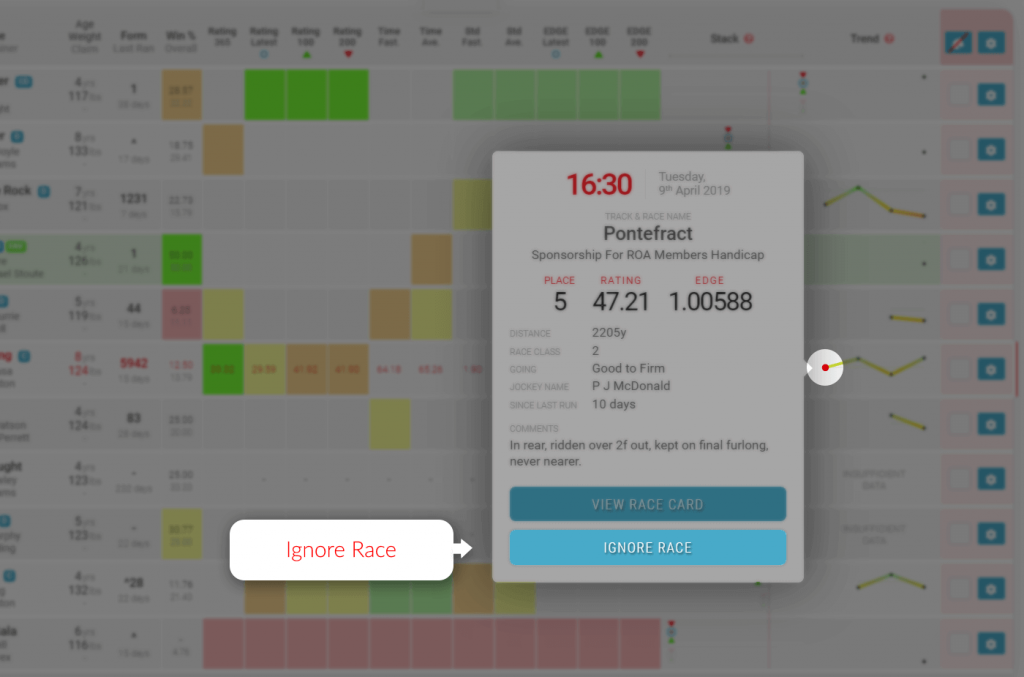
    If you feel that one poor race is ruining a rating, the interactive race cards give you the ability to “forgive/ignore” this run by removing it from the race card. This will improve the rating.

    This feature is available by clicking on the trend point for the race you want to remove and then the remove race option is in the pop-up.

    Samples Trend Popup - Ignore Race - Trackmate
    Sample Ignore Race Filter

    Equally, if you feel that as a horse has had only one really good run this season which might be enhancing a rating then you can also remove that run and re-rate the race.

    You can also remove a runner from the race card completely as if it wasn’t running at all. Please see our Race Card Filter guide for more information on how to use the interactive race card options.