The Trend is an incredibly useful tool from the TrackMate rating system. Quickly analyse the Rating profile of all contenders in any race. If your potential selection is improving, declining or consistent in it’s performances you will be able to spot this in no time at all.
Here are the features explained on this page:
Trend Line – The horizontal coloured line representing previous runs.
Trend Points – The clickable dots which reveal race data.
Ignore Race Feature – Forgive or ignore an extremely poor or even great race
Example “Trend” – Showing trend points, Speed Rating and EDGE Ratings.
Trend Line
The TrackMate Trend is a visual representation of the horses ratings to date. This makes it easy to spot form of an improving, consistent or declining contender. Incredibly useful for spotting runs that are “Out of character”
Trend Points
Each trend point represents a run with the first rated run being the dot furthest to the left. Information for each race is available by clicking these points/dots.
How to read the Trend
The trend displays each horse’s form in the horizontal graphical line or “trend line“. It has been designed so you can easily and speedily ready form. Utilizing an easy to read graphic which clearly shows if the horse’s form is improving, declining, consistent or inconsistent.
Improving Trend
When the horizontal trend line is going upwards this is what we refer to as an “improving tend” meaning the result was better than the previous race.
Declining Trend
When the horizontal trend line is going downwards this is what we refer to as a “declining tend” meaning the result was worse than the previous race.
Consistent Trend
When the horizontal trend line doesn’t go up or down very much this is what we refer to as a “consistent tend” meaning the results are pretty similar. This can be true for part of the line, but the greater proportion represents greater consistency.
Inconsistent Trend
When the horizontal trend line goes up and down a lot then this is what we refer to as a “inconsistent tend” meaning the results are erratic. This can be true for part of the line, but the greater proportion represents greater inconsistency.
Trend Point Information Popups
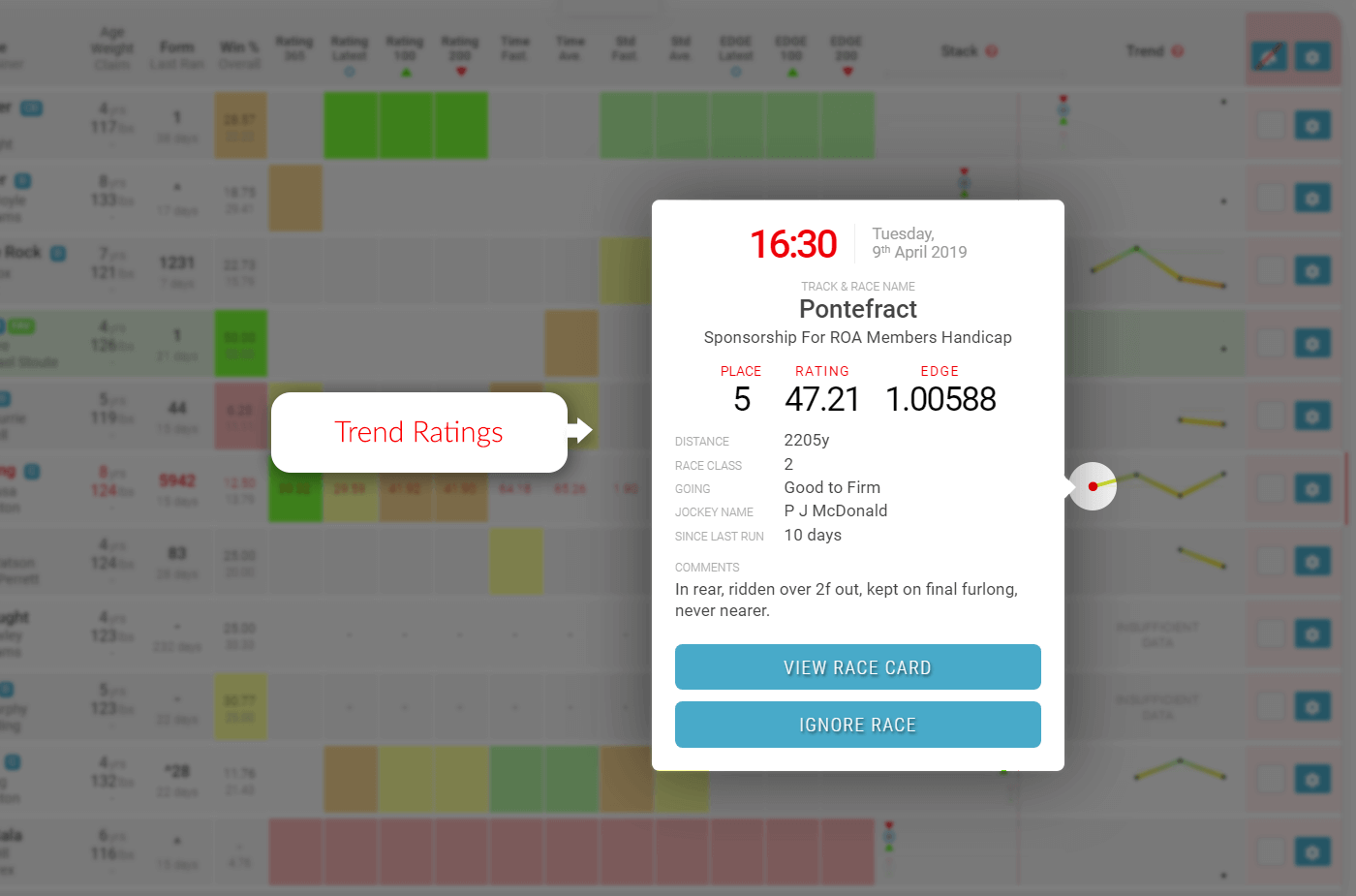
Each dot or “trend point” represents a race that the horse has taken part in. On hover these points will change to red dots and when clicked will open the information popups.
Sample Race Card Trend Popup
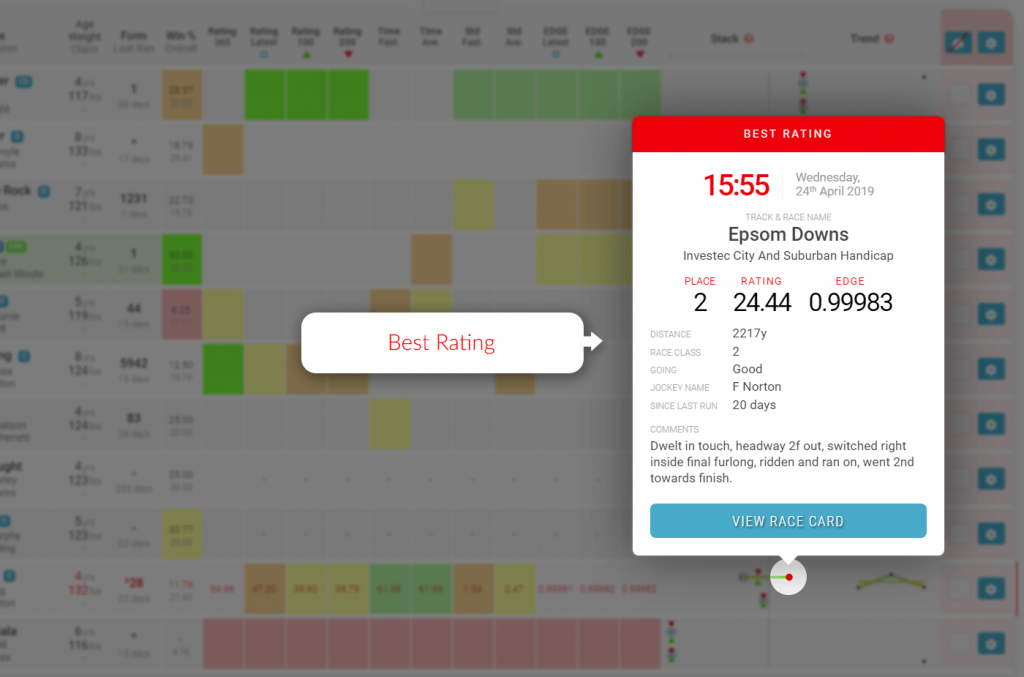
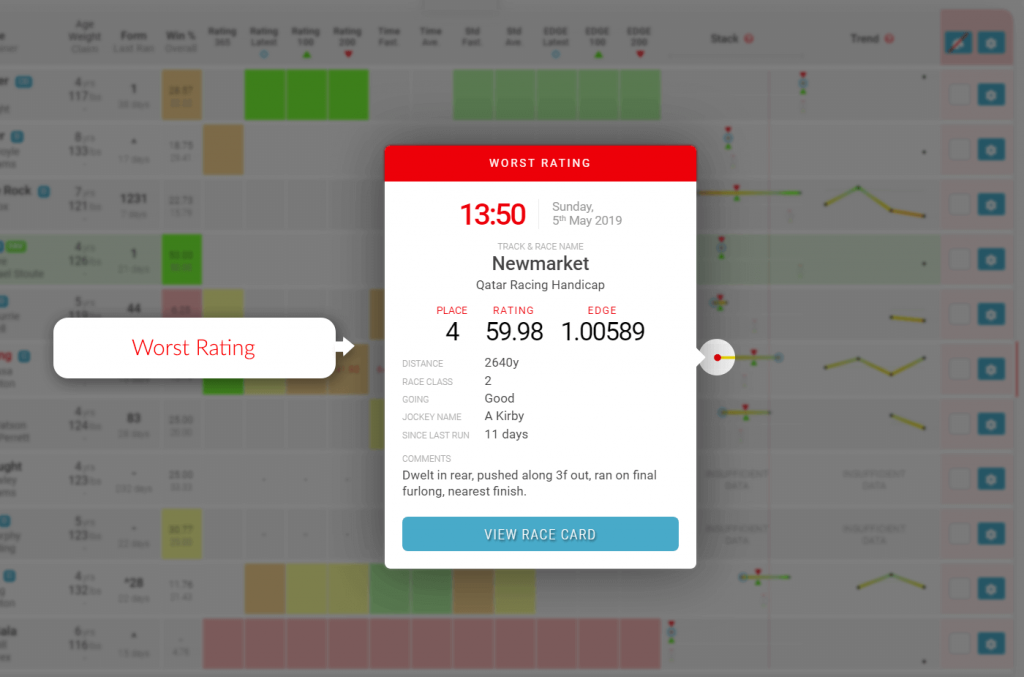
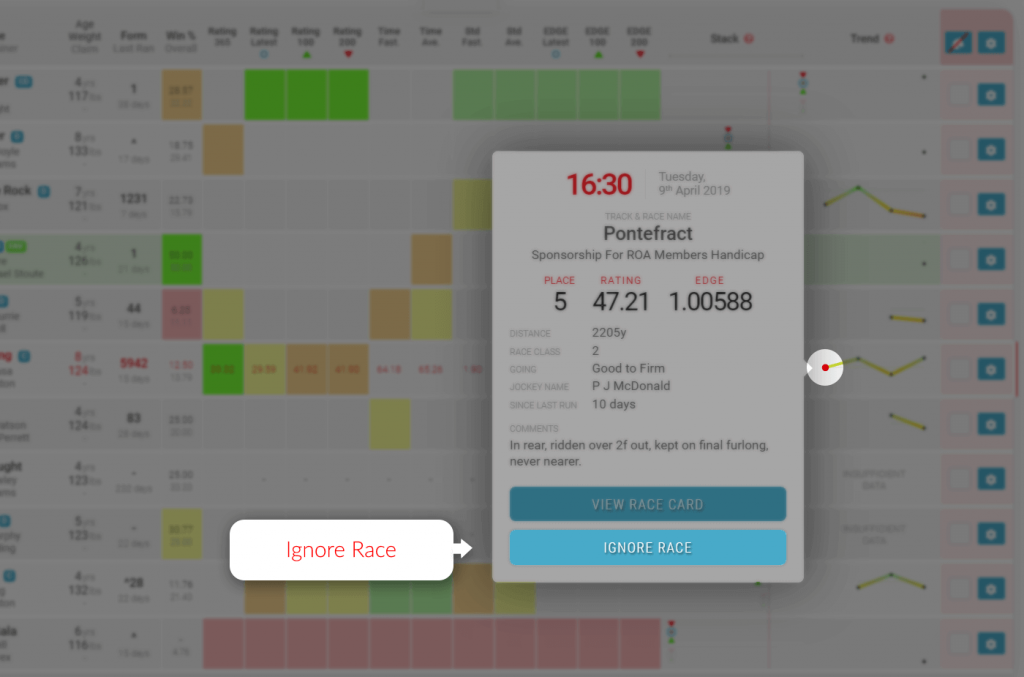
By clicking on these points you will see a popup with all the details of that particular race. You will have all the information you need; race conditions, race distance, jockey and many more including TrackMate Speed and EDGE ratings achieved for that run.
Ignore Race Feature
One of the great features of the TrackMate race card is the ability to “ignore” any of the horses runs for any reason you may have.
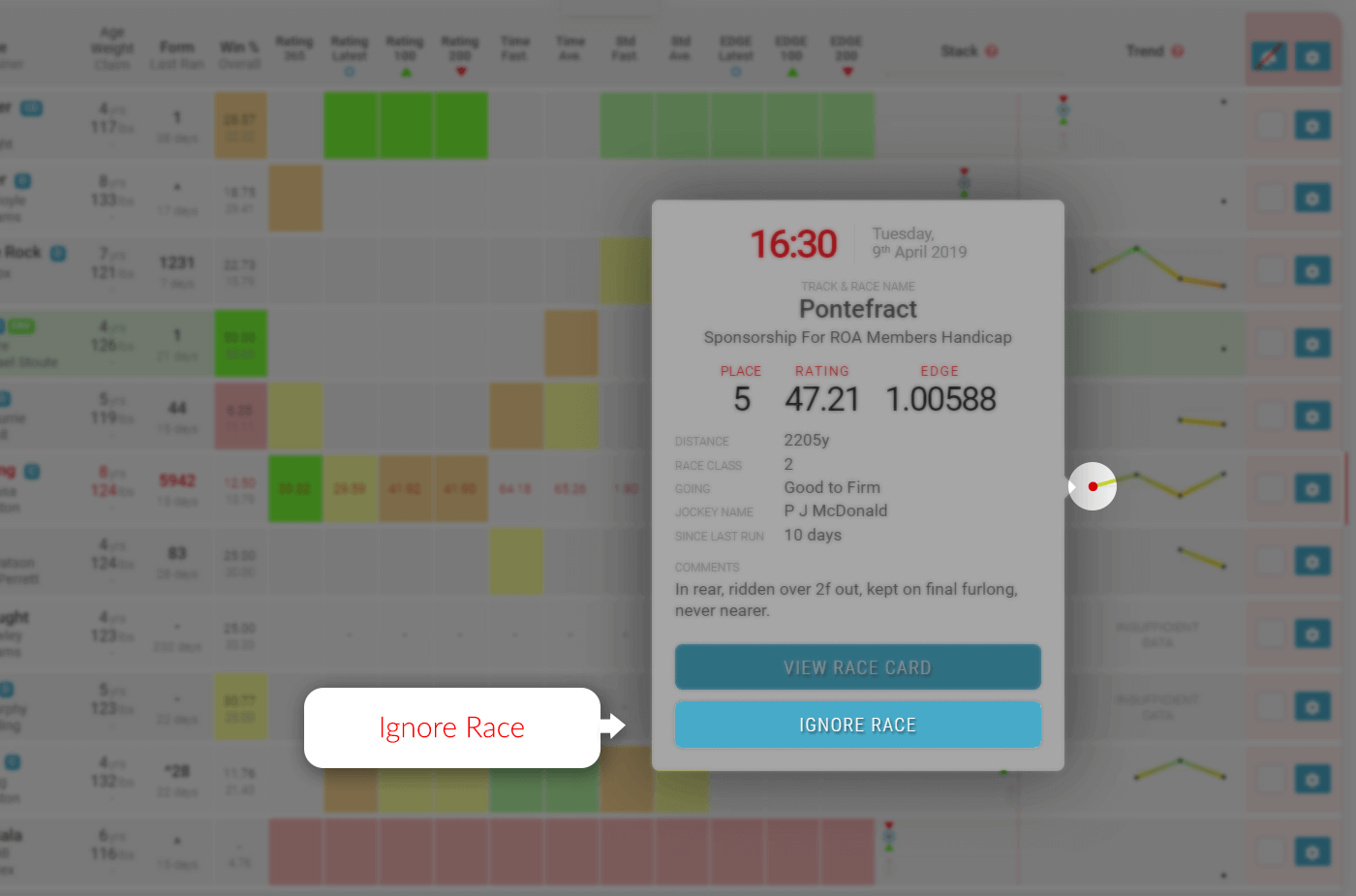
Sample Race Card Trend Popup – Ignore Race Button
If you decide that you are prepared to forgive a bad run or you know that the race distance just didn’t suit the animal or even if you think the jockey was no goodin that race. Just click the trend point and then remove race from the popup.
One of the most exciting features of the TrackMate rating system is the stack. An incredible tool for the speedy analysis of the ratings in relation to the other runners in the race. It has many uses and can be an incredibly powerful tool when analysing races. There is a stack for both sets of ratings on every race card.
On this page you will find explanations for the following:
Range of Performance – Visual representation of each horses rating range the qualifying form.
The “Stack” is a graphical representation of each horse’s range of performance from the qualifying form.
The top stack is speed ratings and is a thicker line.
The bottom stack is EDGE ratings and is a thinner line.
Both stacks have the same rating markers for each horse’s qualify form.
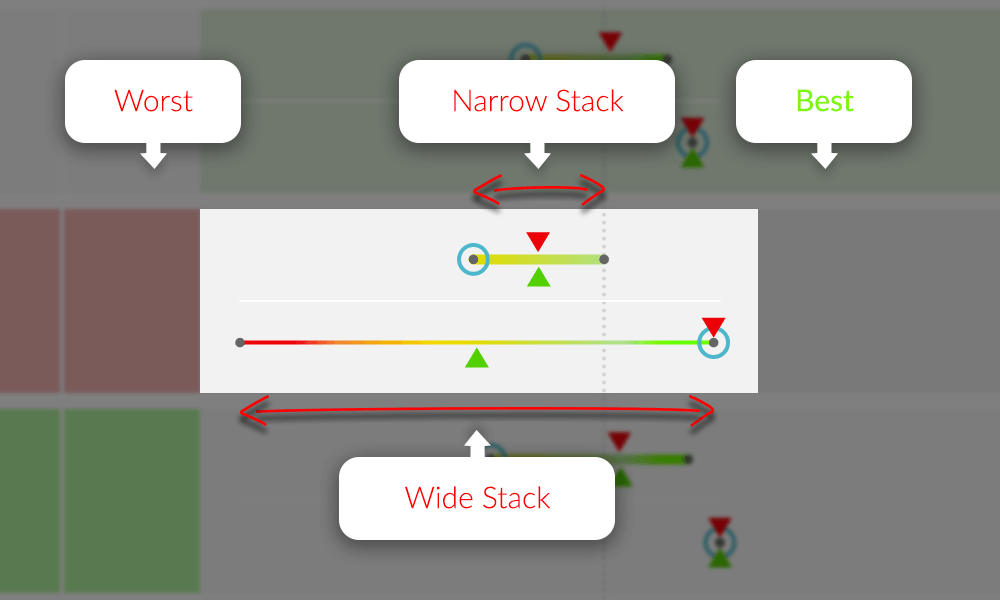
Sample “Stack” – Showing 100, 200 and most recent ratings and the range between worst and best.
Range of Performance
The narrower the line is, the more consistent the horse has been as the range between worst and best is less.
The wider the line, the less consistent the horse has been as the range between worst and best is greater.
Worst Rating
The dot on the far left of each horizontal line is the horses worst rating for the qualifying form period.
Best Rating
The dot on the far right of each horizontal line is the horses best rating for the qualifying form period.
100 Day Rating Icon
The green triangle is the average speed rating for qualifying races for the last 100 days.
200 Day Rating Icon
The red triangle is the average speed rating for qualifying races for the last 200 days.
Latest Rating Icon
The blue circle is the rating for the last qualifying race.
Vertical Guide Line
There is a vertical guide line feature that appears when you hover over the grey guide bar under the stack column title. The line will be red when active as you move left and right over the guide bar. It will then stop moving and change to a grey dotted line when you move off the guide bar.
This line is extremely useful to get a vertical comparison between all runners stacks in the race making it easier to visualise where the stacks and icons are in relation to each other.
Great Stacks
The stack can identify opportunities where horses could be deemed as well above the standard of the rest of the field.
Here are two example of how to identify a “great stack”
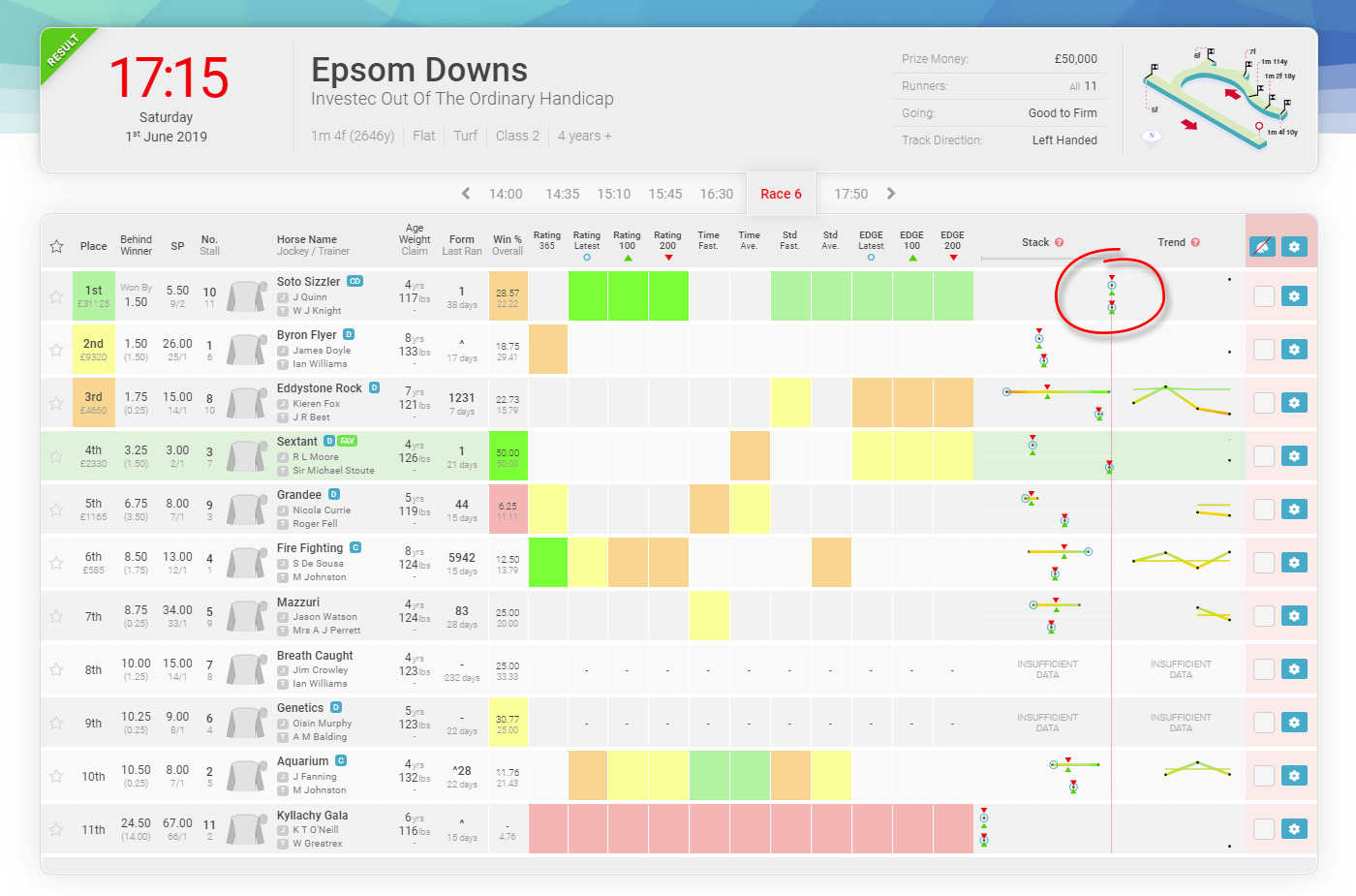
“Great Stack” Example 1 – 1st June 2019, Epsom Downs at 5:15pm
In this example 1, you will clearly see that the stack for Soto Sizzler indicates that his form is way out in front of the rest of the field in both Speed and EDGE ratings.
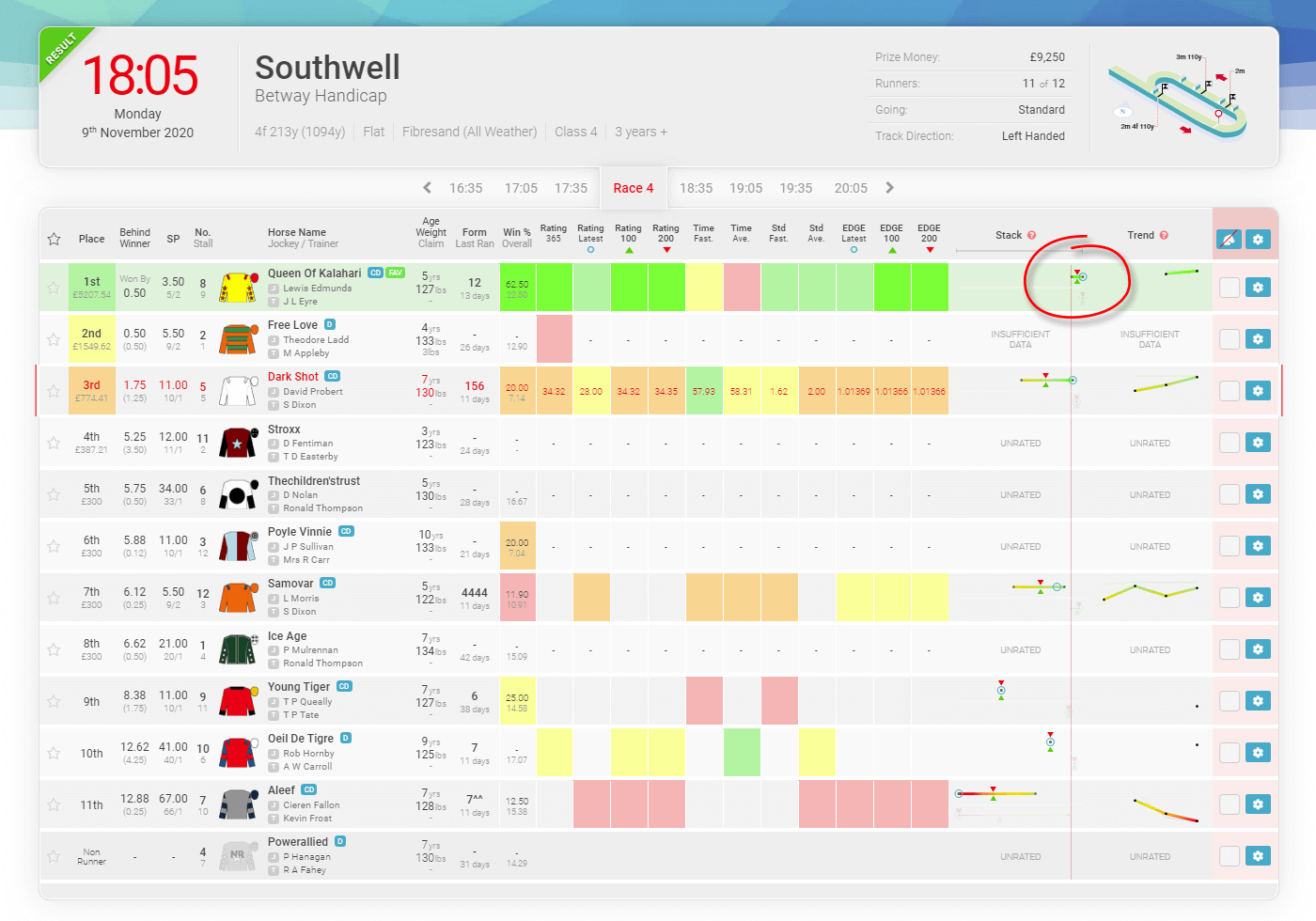
“Great Stack” Example 2 – 9th November 2020, outhwell at 6:05pm
You will see in example 2 that Queen Of Kalahari’s “worst” run is as good as any of the other runners “best” run and its best run is clearly best of all.
The stack can also be used to find “poor value” horses and opportunities to “Lay” horses on the exchanges.
Stack Point Information Popup Examples
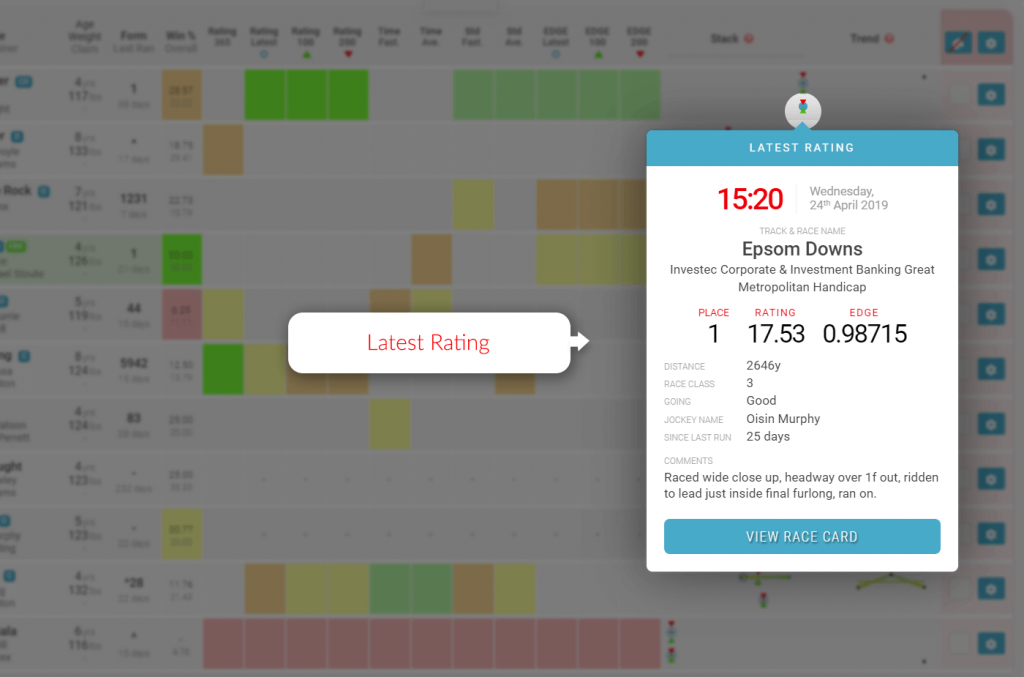
Latest Rating (blue circle)
Sample Stack Point Information Popup – Latest Rating
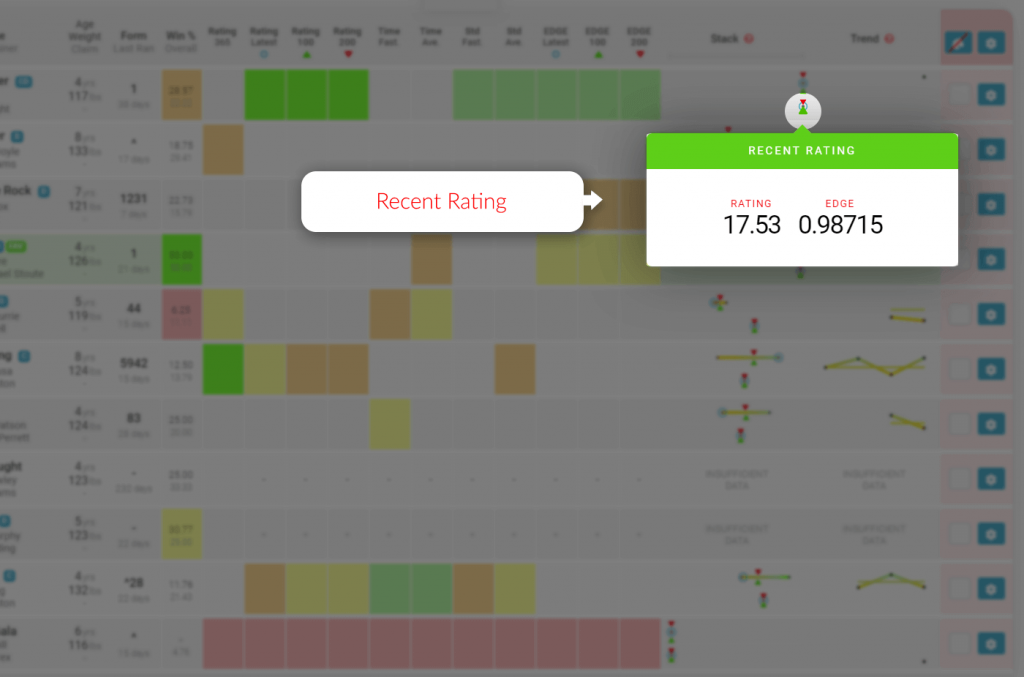
100 Day Rating (green triangle)
Sample Stack Point Information Popup – Recent Rating
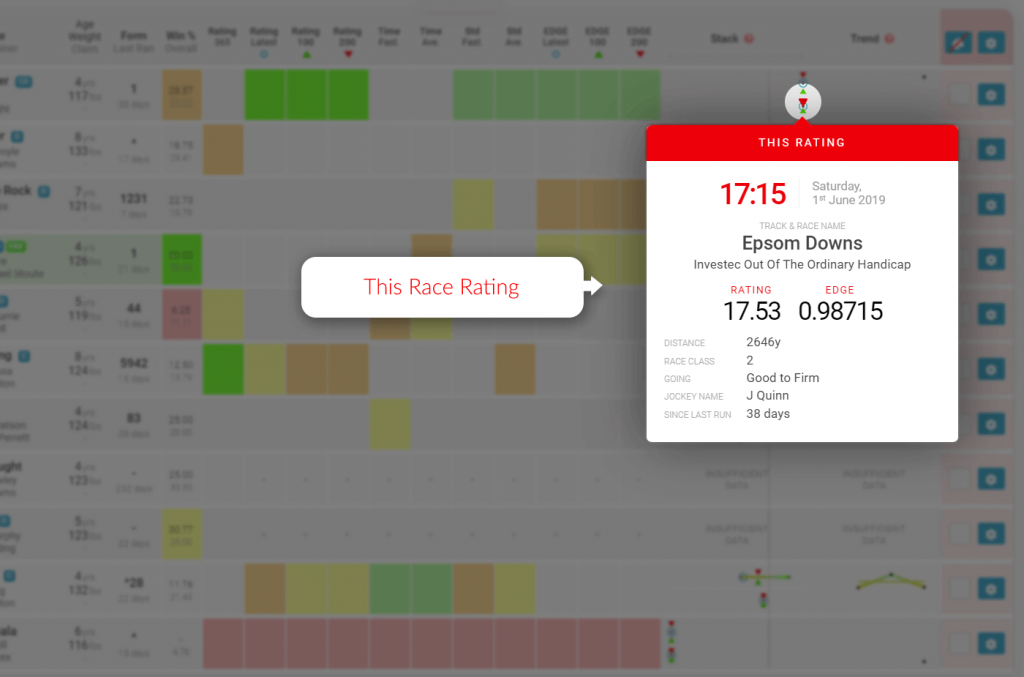
200 Day Rating (red triangle)
Sample Stack Point Information Popup – This Rating
Best Rating (far right dot)
Sample Stack Point Information Popup – Latest Rating
Worst Rating (far left dot)
Sample Stack Point Information Popup – Latest Rating
This page gives you an overview of the TrackMate ratings, what they mean and how to understand them. The ratings are colour coded for ease of use, eliminating the need for confusing tables of numbers and unnecessary racing jargon.
Assuming you have already familiarised yourself with the race card, it is time to have a look at the ratings. If you need to know more about the race cards then have a look at the ADD LINK TO RACE CARD INFO PAGE page.
We need to start with explaining what the rating colours mean before trying to explain anything else. TrackMate race cards display the top 3 rated and bottom rated horses in a traffic light style colour scheme as shown below.
Clear Top
Top Rated
2nd Rated
3rd Rated
4th Rated
Rated Last
No Colour
Non-Runner
–
Not Rated
Bright green is “Clear Top” meaning they are rated comfortably ahead of 2nd best. Green is “Top Rated” but not by a comfortable margin like clear top would be. “2nd”, “3rd” and “Last” rated continue in a familiar traffic light colour scheme.
Horses rated “in the middle” are grey or have no colour as are horses without a rating. We only rate the top 3 and bottom as we do not need to know which horse is rated 7th and would void the point of our rating colours. If you hover over the rating boxes you will see the numerical rating. This will not be visible if the horse has no relevant rated form for the qualifying period.
Now you understand what the different colours represent… let’s move on to the ratings themselves.
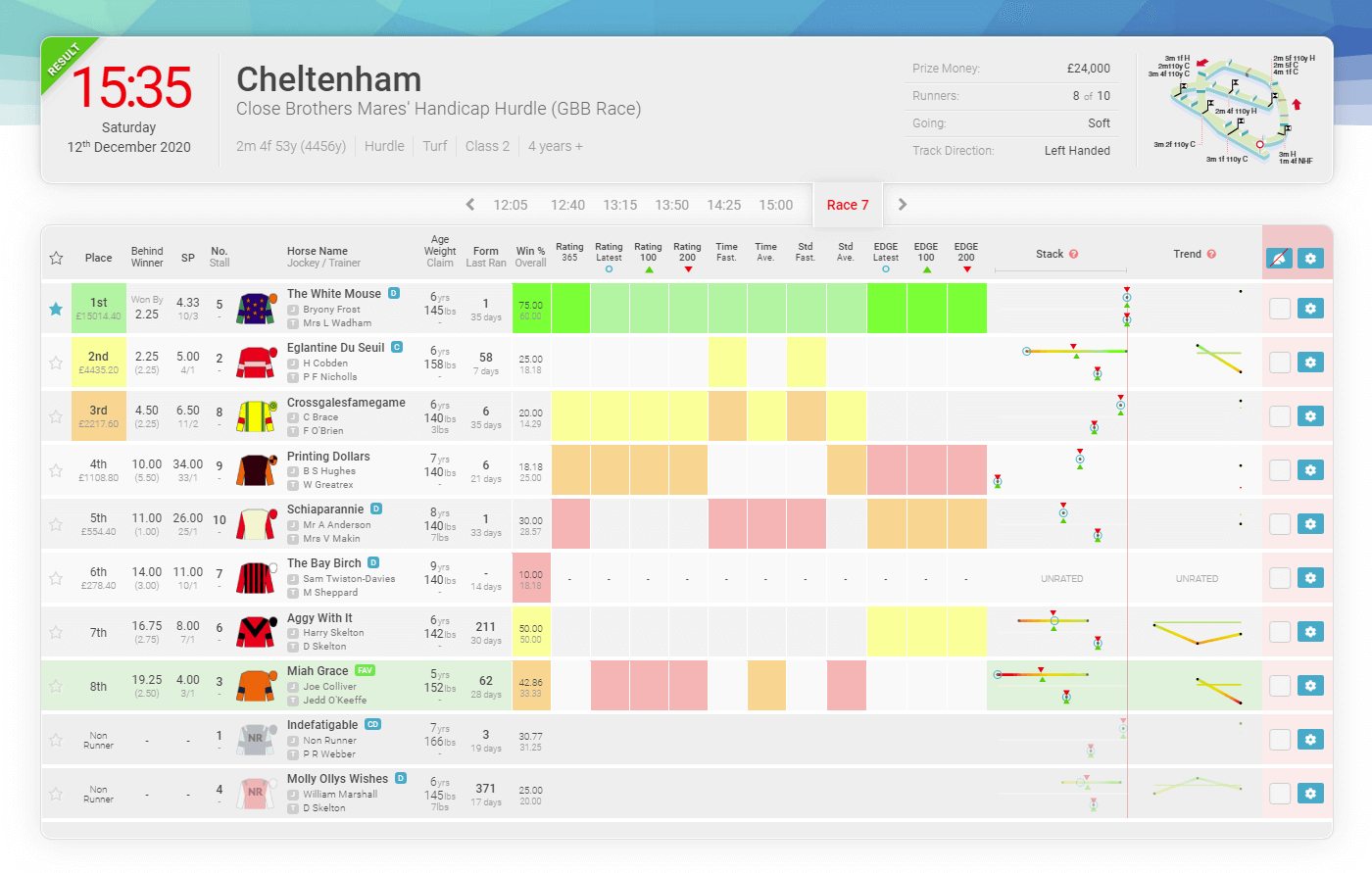
The first 10 ratings boxes are the TrackMate Speed Ratings calculated using our advanced algorithms and unique racecourse standards. Ideally, you are always looking for these boxes to be as well coloured as possible. Remember… green is best.
The TrackMate race cards display all the rated relevant runs (up to the last 8 runs) in a 200 day period We produce a speed rating for every run and the final speed rating is the average of all ratings combined.
Win Percentage
There are two percentages in this column. The top percentage is the win rate from for this exact type of race and the bottom is the overall win rate from all qualifying races.
Rating 365
This TrackMate average Speed rating is for the previous 365 days before the current race card you are viewing. We concentrate mostly on recent form so this rating indicates potential dangers from runners who have little or no form in the current season.
Rating Prev
TrackMate average Speed rating for the current time period in the previous season. This rating is most helpful for runners who have little or no form for the current seasons latest, 100 or 200 periods, like with Rating 365 but over a shorter period.
Rating Latest
The latest speed rating achieved by this horse. Very often an important indicator of the horses current form. A good speed rating for its latest run means that the horse should be fit and well and that the conditions of that last run suited the horse. This rating is also indicated on the stack as the blue circle.
Rating 100
This is the TrackMate Speed rating for this horse averaged over the last 100 days. The best indication of recent form. The more runs the more accurate this rating will be.
Rating 200
A slightly longer-term speed rating. This Rating is the overall Speed rating for the last 200 days. A good indicator of the horses’ consistency.
Fastest Time
The best time rating achieved in the last 200 days.
Time Average
This rating is achieved using our standardised race distance and represents the horses’ average time over said distance.
Standard Average
The runners average time from the TrackMate standard vs field.
Fastest Standard
This is the closest this runner has come to the TrackMate course standard time for this distance.
Sample Race Card – Cheltenham, 12th December 2020 at 3:35pm
It is not always the fastest horse that wins a race nor does it have to be. Some horses win races easily so do not run as fast as they could at the end of the race simply because they don’t have to. Well beaten horses will often leisurely cross the line in 10th place without a care in the world.
Only good horses can run good times, but both good and bad horses can run bad times.
The TrackMate Team
In the scenarios above, no speed rating system can accurately rate this type of run.
TrackMate speed ratings are no different and it would be ridiculous for us to claim otherwise. What we do claim however is that we believe that they are about as good as it gets.
EDGE Ratings
The last 3 boxes are the TrackMate Edge Ratings calculated using TrackMate’s unique algorithms.
The TrackMate Edge Rating is the result of many years of development. The unique evolutionary algorithms run simulations with thousands, if not millions of iterations per race. Making EDGE a very powerful tool.
The EDGE ratings are completely different from the speed based ratings and sometimes they will have conflicting assessments of a race. Being a form-based rating, the edge will sometimes find form lines that are better than the rest of the field but the speed ratings do not agree.
EDGE Latest
The most recent edge rating achieved.
EDGE 100
The Edge rating for the last 100 days.
EDGE 200
The edge rating over the last 200 days
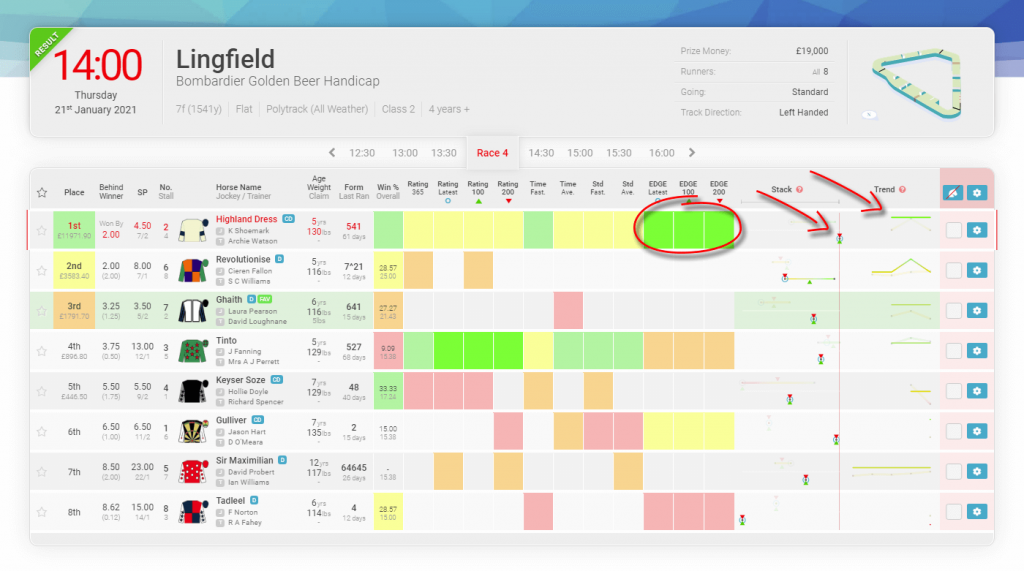
Sample Race Card – EDGE Rating Clear Top
The race card shows that the EDGE ratings have the winner “Highland Dress” as the clear top rated horse in the race. Ideally, we would look for some backup from good speed ratings but it is not always the case.
Using the Stack and Trend are a couple of ways to back up the ratings.
Interactive Ratings
If you feel that one poor race is ruining a rating, the interactive race cards give you the ability to “forgive/ignore” this run by removing it from the race card. This will improve the rating.
This feature is available by clicking on the trend point for the race you want to remove and then the remove race option is in the pop-up.
Sample Ignore Race Filter
Equally, if you feel that as a horse has had only one really good run this season which might be enhancing a rating then you can also remove that run and re-rate the race.
You can also remove a runner from the race card completely as if it wasn’t running at all. Please see our Race Card Filter guide for more information on how to use the interactive race card options.
All websites need a myAccount page, and TrackMate is no different. You will find all your personal details, customisable settings, subscription information and also your transaction history.
Your personal details were gathered during registration and you can add/edit them here on the myAccount page.
Usage Statistics
This section of the myAccount page contains all your useful usage statistics like; how many race cards you’ve viewed, how many horses you are tracking using myTRACKER and how many slips you have in your mySLIPS.
Customisable User Settings
These settings are customisable so you can setup TrackMate you way you like it. Look for this button which will open the settings popup. There are a selection of settings you can personalise like; change how mySlips displays predicted profit/return and race card filter leeways. Create a TrackMate system that suits you as we add more settings over time.
Subscription Information
This shows you all TrackMate membership options and also which one you are currently subscribed to. Here you have the ability to start and upgrade your membership.
Everyone who registers with TrackMate will automatically receive a “Free” account. You’ll have access to view the daily “FREE Card” which you can find on the myTrackMate page and also have the ability to view the previous days cards with results. You will need to subscribe for one of our Trackmate membership subscriptions to gain full race card ratings and live filter access.
You can also view all our membership subscription options and special offers on the membership page.
Transaction History
All of your current and historic subscription information can be seen here, and if you required you can also cancel your membership subscription here.
The myTrackMate page is a personal homepage, a one-stop page where all your race card interactions are saved so you can see all your activity in one place. Everything from myTRACKER to mySLIPS and your betting history and statistics. Read on for full explanations for each feature and how to use them.
Here is a full list of the “myTrackMate” page features:
Live Race Cards – Access to all today’s race cards and ratings.
History Race Cards – Access to 5 years of historic race card ratings and results.
TrackMate refers to all races which haven’t run yet as “Live” and are visible for all members. There is a link to today’s live cards in the sidebar options menu which looks like this .
FREE Account Members will only get to see ratings for one card a day selected by the Trackmate Team (see Today’s FREE Race Card below) whereas Subscribing Members will get ratings on all “Live” cards as well as the uses of the Race Card Filter features.
Historic Race Cards
TrackMate refers to all races which have results as “Historic“. There is a link to historic cards in the sidebar options menu which looks like this .
All members will have access to over 5 years of historic race card ratings making it a quick and simple to check and process results. These results and ratings are the perfect way to backtest your systems and strategies. Additionally, all subscribing members will have access to the Race Card Filters feature. Normally this is used alongside your systems on live cards, but it is also a very powerful tool you coan used to test your systems on historic cards.
Race Card of the Day (Today’s FREE Race Card)
The sidebar options menu also has a link to the race card of the day which looks like this . This race is selected daily from that day’s race cards by the TrackMate team.
Normally it is a race of interest or just a race we feel should be highlighted, but can also be used for competitions and alike to identify a particular race. This button is only visible to subscribing members, if you are a FREE Account Member it will look like this instead and is the only live race card available with ratings. It is usually the same race card selected for all members, unless stated otherwise.
myTRACKER
myTRACKER is a list of all of the horses you have selected to keep an eye on. They are highlighted on every race card that horse has/will run in so they’re easily identifiable. You can also add/edit notes like why you selected this horse for each.
How to add a horse to your myTRACKER
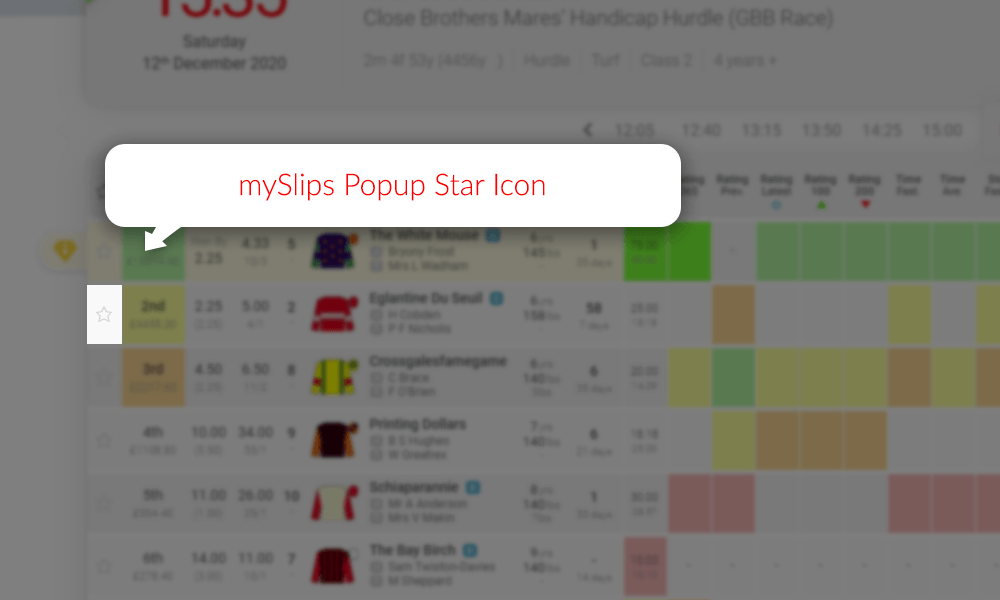
When you click on the star icon to the left of any runner on a race card you will see a selection popup.
The star icon popup menu button is grey when the horse isn’t selected.
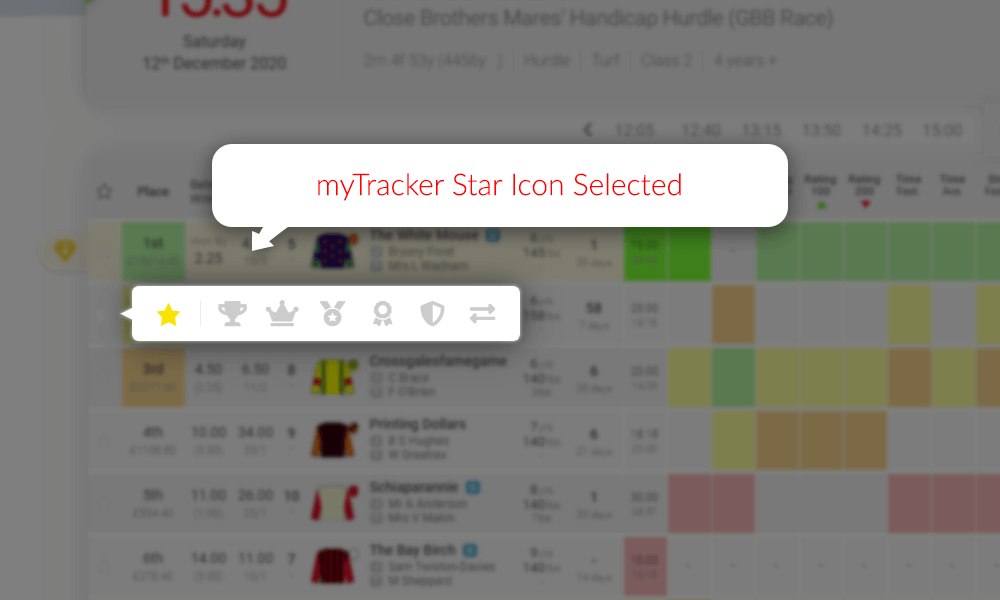
In the popup click on the star icon to add that horse to your myTRACKER.
Selected icons will change colour when successfully selected.
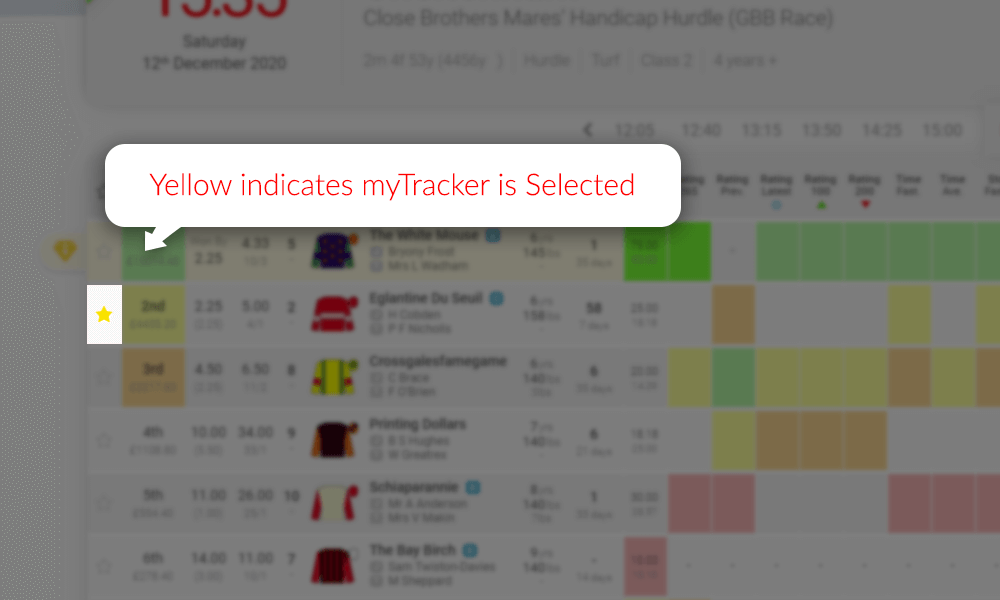
When you click on icon it will change to yellow to identify your selection. At the same time a simple form will dropdown so you can add notes. These notes will be available for you at all times from the race card or your myTrackmate myTRACKER section.
Notes will popup when you click the icons, or when you hover over a selected icon.
Your myTRACKER horses are highlighted on race cards
Horses added to your myTRACKER will change the star icon on race cards to yellow to highlight that this horse has already been added to your myTRACKER selections.
The star icon will have a blue border if you have added this horse to mySlips.
mySLIPS
Tracks your bets and logs them in your personal myTrackMate database.
Automatically calculates profits/losses and stores the data.
See your stats for today, the last 7 days, the last 30 days or all historic bets.
Track your win rate.
Auto updated ROI calculations.
Make notes in your MySlips.
Test your systems before you jump in by monitoring your selections statistics before you bet for real.
Use either fractional or decimal odds for your stats.
The TrackMate System will auto stake all bets from your mySLIPS with £2 stakes and use the SP as your odds unless specified in your slip.
Statistics and bankroll management software.
Another great feature we offer our members is the mySLIPS bet tracking software. When you find a horse that you are interested in having a bet on, simply click on the next to the horse’s name and save it in your mySLIPS which will then be visible on your mySLIPS section on your myTrackMate page. This process is the same as selecting a horse for myTRACKER (see explanation and image examples above in the myTracker section)
The bet tracking feature is the ultimate way to track your success and implement great bankroll management skills which will improve your profitability immediately.
The Trackmate Team
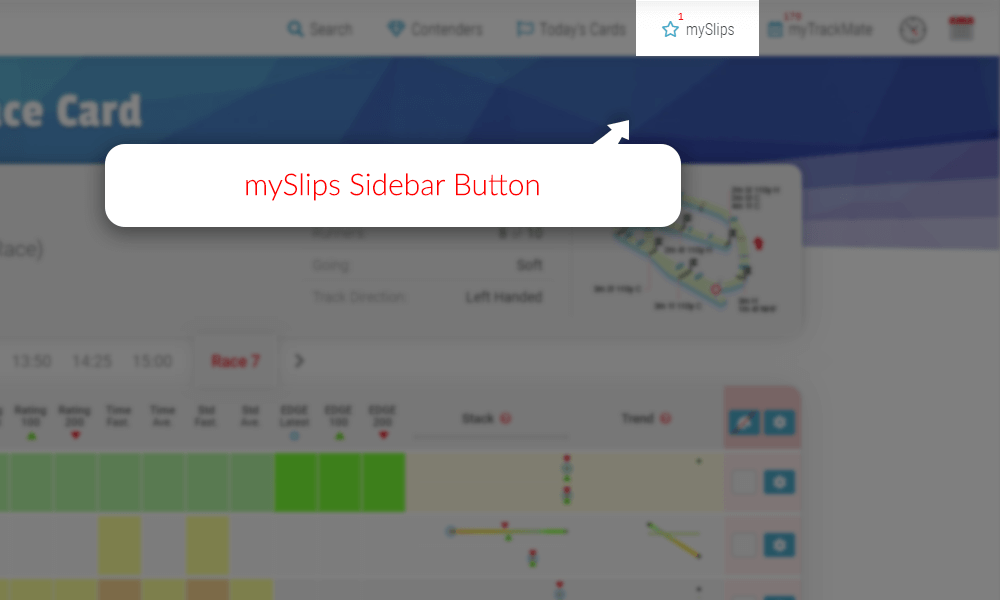
When logged in as a registered TrackMate member you will see the members infobar under the main menu. On the members infobar you will see the button which opens the mySLIPS sidebar.
The red number above the button represents how many slips you have in your mySlips.
When you have selected a bet type for a horse from a race card it will automatically be placed in this mySLIPS sidebar. When open you will see a list of all your selected horses where you can enter your odds, stakes and bonus places.
This example shows the horse The White Mouse slip in mySlips.
When you hover over the slip it will partially expand so you can see more info without having to select it. This is useful when you have multiple slips.
The White Mouse when you hover over it.
When you click on a slip it will fully expand. There are inputs on every mySlips slip which allows you to add the odds you have taken for your bet, which can be added as either fractional or decimal formats, the stake you would like to place and if your bet includes bonus places. The slip will automatically log your bet details, calculate your total stakes and predicted return/profit. You can choose if you’d like to see predicted return or profit in the settings on your myAccount page.
Edit “Odds” and “Stake” for each bet type and it calculates the predicted return/profit for you.
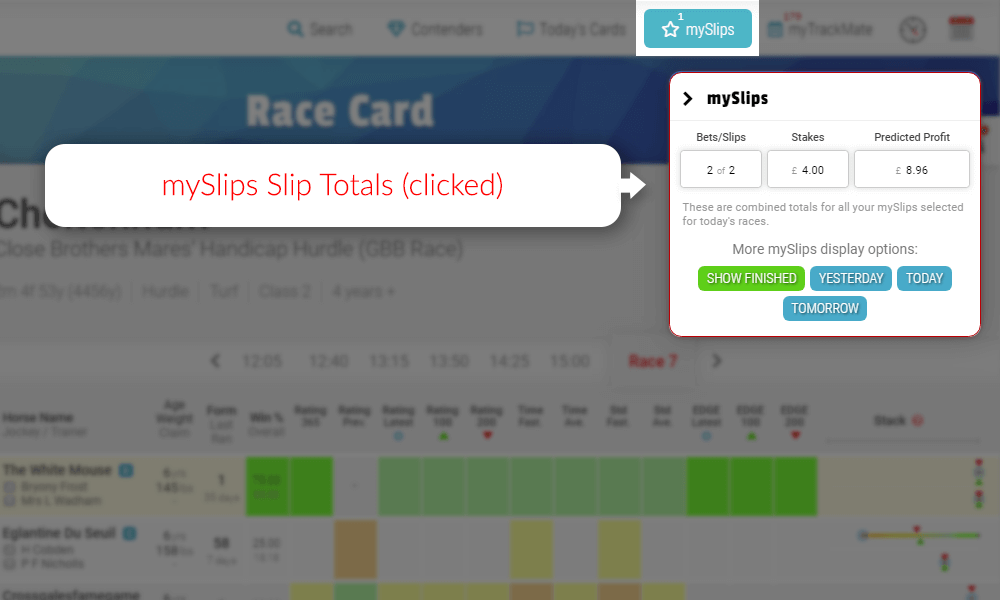
You can check the total stakes and predicted return/profit for all the slips combined by clicking the “Current mySlips” header above the slips. This example says Current mySlips because the period has been set to “Race Card” as will be explained next.
mySlips slip totals worked out for you.
You can also decide what content period you would like the mySlips sidebar to show you. This example is set to “Race Card” which will only show your slips for the race card you are currently on. The title of the mySlip header will change depending on your selection. The selection is saved and will be used until changed again. Other options are “Yesterday” to only see yesterday’s slips, “Today” to only see today’s slips and “tomorrow” to only see what you have picked out for tomorrow’s races.
Your myTrackMate data is automatically transferred to this page and will track your statistics for; wins, losses, win rate (%) and even your return on investment (ROI).
Race Card Adjustments
View all your ignored/removed runners.
View all your ignored/removed runs.
Edit ignored/removed notes.
Remove/Reinstate/Reset runners and races back to their race card.
Your myTrackMate page also allows you access to your personal database of horses and races you have ignored or removed. MyTrackMate Race Card Adjustments can be reinstated or leave them stored in your personal database.
TrackMate 7 day Support
You’ll also find a support link/button in the options menu for 7 days a week support from the TrackMate Team. The support button looks like this .
If you need additional information or help using any feature, please use this link rather than the standard contact form. This support team link connects you directly so will get your requirements dealt with a lot faster.
The TrackMate race guides have been designed in such a way to be easy to read and easy to understand. Below are some examples of real race card ratings and how to easily start to pick winners.
The “Value Bet” – Looking for well-rated horses at big prices.
The “Lay Bet” – Be a bookie and “take one on”. Poorly rated favourites worth laying.
Rating Colours Explained
We need to start with explaining what the rating colours mean before trying to explain anything else:
Clear Top
Top Rated
2nd Rated
3rd Rated
4th Rated
Rated Last
No Colour
Non-Runner
–
Not Rated
Now you understand what the different colours represent… let’s move on.
How should I be using TrackMate?
There are many ways to use the TrackMate system and many ways to read the “picture” created by the colour-coded ratings integrated into the card.
It can be used as your only method of selection or in conjunction with your own race reading abilities and knowledge of form. Both are extremely powerful.
Remember, you do not have to bet in every race.
The TrackMate Team
Waiting for the right opportunity and most importantly, waiting for value is the key to success.
Here are some examples of the type of picture you may come across:
The “Messy Race”
Sample “Messy Race” – 3rd August 2019, Hamilton at 5:50pm
In this race card example, you can see that the colours (ratings) all over the place. Nothing stands out as any better than the others because the colours are spread out across all of the runners.
With this type of picture we would normally just move on to the next race… but is it worth a closer look? There might be an opportunity lurking somewhere. We are looking for a well-rated horse that represents good value.
Can we clean up/filter the card and spot some value?
Check the going settings in the Race Card FIlter match today’s conditions.
Rate less runs. You can rate 3, 5 or 8.
Filter the remaining runners for Surface, Ground and Distance perhaps?
If after exhausting all options you do not find an obvious or good value selection just move on to the next race.
You do not need to find lots of selections. Just well rated and good value ones. If there are none that day, be patient, there will always be another race and another… and another!
The “Standout Selection”
You will see from this race card picture that there is an obvious contender. It is not hard to spot… green is good!
Sample “Standout Selection” – 12th December 2020, Cheltenham at 3:35pm
The obvious horse to choose in the race above was “Bay Of Naples“. This picture indicates that the horse is:
Clear top-rated in “Rating 365”, “Rating Latest”, “Rating 100”, “Rating 200”, “Edge Latest”, “Edge 100” and “Edge 200”.
Top rated in “Win %”, “Fastest Standard” and “Average Standard”.
The stack best rating is top as is the stack latest.
Everything you want in an investment based on the TrackMate ratings.
The “Value Bet”
Sample “Value Bet” – 20th January 2021, Southwell at 6pm
In theory all your bets should be value bets. The race example above is from this year’s ultra competitive Lanzarote hurdle and amazingly the winner “Boreham Bill” was totally unfancied at an incredible price of 66/1 and even bigger on the exchanges!
In a scenario like this we would prefer the 80% to place and 20% to win staking strategy.
In a big race like this one you will be able to obtain prices for as many as 6 places on the exchange.
The “Lay Bet”
Sample “Lay Bet” – 5th January 2019, Kempton at 5:15pm
To those of you already familiar with the betting exchanges you will be aware of laying horses. It is essentially acting as the bookmaker and laying odds against the horse winning.
In the above example the favourite “Luxford” looks like terrible value based on the TrackMate ratings and could potentially be the sort of horse you might want to lay on the exchanges.
ALWAYS be cautious when using this function on an exchange. Make sure you understand betting exchanges before you attempt to lay horses.